 techandtab
We may receive a commission on purchases made from links. Laptop makers have their work cut out for...
Can You Still Use A Laptop That Has A Broken Screen?
We may receive a commission on purchases made from links.
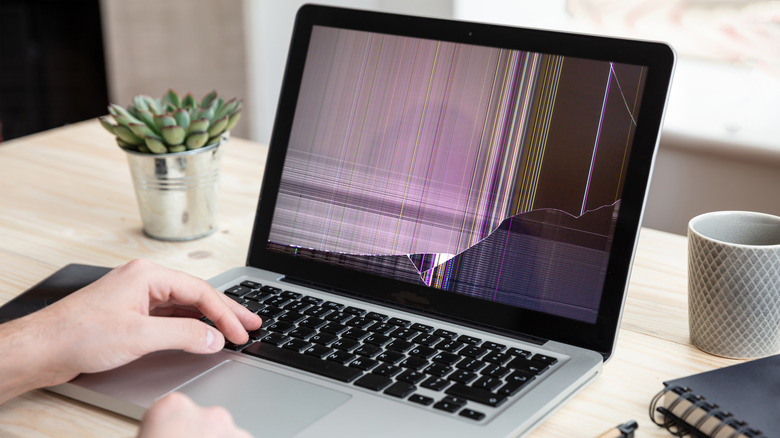
While laptops from reliable brands like Dell and Apple typically land on the higher end of the price spectrum, the high cost usually translates to durability, meaning you can go years without having to empty your wallet for a new one. However, how long you can actually use a laptop heavily depends on how well you maintain and handle it. From battery degradation and connectivity problems to hinge damage and overheating, laptops can face a variety of hardware issues over time. One of the most common issues is screen-related issues like a cracked or shattered screen, flickering or distorted display, color distortion, dead pixels, or a screen that won’t turn on at all.
If your laptop falls victim to any of these issues, you may naturally wonder if it means the end for your device. While you may need to get a little creative with how you use it, a broken screen typically doesn’t need to be repaired immediately. So, in most cases, you’ll still be able to use it. Before looking for an alternative way to keep using your laptop, first determine whether the issue is purely with the display or the laptop itself.
Start by checking for visible screen damage, such as cracks, pressure marks, or discoloration. If present, the screen is likely the problem. If your screen remains completely blank, try connecting your laptop to an external monitor. If the monitor works fine, your laptop’s display is likely at fault. If your laptop was exposed to moisture recently, water damage could also be the culprit, and it’s best to get your device examined by a professional. If you notice dead or stuck pixels or have a cracked screen, try the fixes below. Otherwise, an external monitor can help you keep using your laptop.
Fixing dead pixels and cracked or flickering screens

Unfortunately, if your screen is cracked, there’s not much you can do yourself. A cracked screen usually requires a full screen replacement, which is best handled by a professional. If you’re experienced with repairs or willing to take the risk, you can try fixing it at home. However, if the crack is minor, you can continue using your laptop but avoid applying extra pressure to prevent the crack from spreading.
If the issue isn’t with the screen itself, like a flickering display or stuck/dead pixels, start by restarting your laptop. This can resolve minor bugs or glitches and may fix the screen if the issue is software-related. While you’re at it, check for driver updates, install them, and see if the issue persists. If it’s caused by a known bug in your operating system, updating might help resolve it. Otherwise, you may need to try specific troubleshooting steps for your issue. For flickering, updating your graphics drivers and adjusting your laptop’s screen resolution and refresh rate settings might help.
If you notice black spots on your screen that don’t display any color or light (dead pixels), you can try applying very gentle pressure to the affected area with a soft microfiber cloth. Dead pixels are hard to fix, but if you have pixels stuck on a particular color, known as stuck pixels, these can be fixed using software tools like JScreenFix. If you’re unable to fix them, don’t worry; they’re typically harmless and won’t affect your laptop’s overall functionality. If they’re clustered together or are located in a distracting spot (like right in the middle of your screen) and impact your viewing experience, you might want to consider getting your screen repaired or using the method covered below.
Using your broken laptop with an external monitor
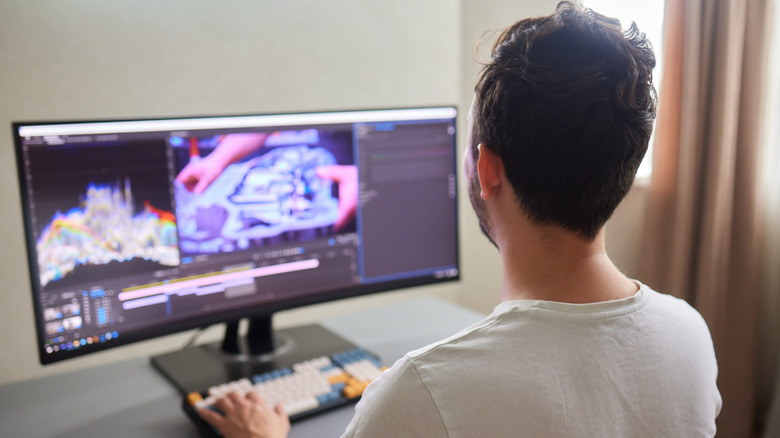
One of the best ways to test whether a laptop with a broken screen is still functional is by using an external monitor. Fortunately, you can continue using your laptop through the very same external monitor. First, confirm what kind of connection your laptop and monitor support. If you have a MacBook, your device may have HDMI, USB-C, Thunderbolt 3, Thunderbolt/USB 4, Thunderbolt 4, or Thunderbolt 5 ports. For Windows laptops, you might find HDMI, USB-C, Mini DisplayPort, DisplayPort, or Thunderbolt ports, depending on the model and year.
Check the ports on your external monitor, which may include VGA on older models. If your laptop doesn’t have the port your external monitor needs (or vice versa), you can use an adapter or cord. For example, if your laptop has USB-C but your monitor has HDMI, a USB-C to HDMI cord or adapter will work. In most cases, your laptop should automatically detect the external display once you plug in the appropriate cable, as long as it’s powered on and charged. Once your laptop is connected to the external monitor, you can use it with an external keyboard and mouse.
If you don’t plan on repairing the broken display, you can remove it entirely and turn your laptop into a stationary desktop setup with its own built-in keyboard. If you don’t have an external monitor but have another laptop on hand, you can use applications like Miracast or a capture card to turn the second laptop into a monitor for your broken-screen laptop.
What to do if your broken laptop won’t connect to your external monitor

As mentioned above, your laptop must be powered on to connect to an external display. Even though the screen is broken, you might hear your laptop’s startup sounds or see an indicator light to confirm it’s booting up. Additionally, closing the lid right after turning on your laptop can sometimes help switch the display to an external monitor automatically. If your laptop isn’t connecting to the external display, you may need to get past the login screen. If you’re familiar with your login process, which may be possible thanks to muscle memory, try navigating blindly. For example, press Enter on your keyboard to select the user account, type your password (if you have one), and press Enter again.
Depending on the laptop, you might also need to hit a key on the keyboard to connect to the external monitor. This will vary from laptop to laptop, so we recommend checking your user manual or looking up the specific steps for your model online. Your laptop screen could also be entirely blank, which would make it impossible to access the display options or extend your display. If this happens, try toggling between the laptop screen and an external display using a keyboard shortcut. On many Windows laptops, pressing Windows + P opens the “Project” menu with options like PC screen only, Duplicate, Extend, and Second screen only. You can use the arrow keys to cycle through these options.
If none of the above help, inspect the cable for any physical damage and make sure the ports on both your laptop and external monitor are clean. Ensure the cable is securely connected. To rule out a defective cable, try using it to connect another device to your monitor.
Source: http://www.slashgear.com/1775476/laptop-slabtop-broken-screen-can-you-still-use/
You may also like

